
 All vikis
ChatGPT Pets
To get a pet in ChatGPT, open the profile menu at the bottom of the desktop app, select Pets, pick one and type /pet; it floats above other windows and shows whether a chat is Running, Needs input, Ready or Blocked. The steps for desktop, web and the Codex CLI, as OpenAI's docs gave them on Nov 12, 2026.
To get a pet in ChatGPT, open the profile menu at the bottom of the desktop app on macOS or Windows, select Pets, choose one, then type /pet (or pick Show pet in the command menu) and it floats above your other windows (Pets, OpenAI docs, read Nov 12, 2026). A pet is an animated companion that shows what your chats are doing, and OpenAI is plain that it is cosmetic: "Choosing a pet changes its appearance, not how ChatGPT completes tasks." In the clip, from OpenAI's Aug 28, 2026 walkthrough of ChatGPT Work, the presenter opens the menu, searches for "Wake Pet" and turns it on to get an alert when Work finishes; the docs we read on Nov 12 name that same command Show pet.
Next: the long tasks a pet is there to watch, the rest of the desktop app's shortcuts or the terminal where `/pets` works.
Where pets work
| Desktop app (macOS, Windows) | ChatGPT on the web | Codex CLI | Codex IDE extension | |
|---|---|---|---|---|
| Pick a pet | Profile menu > Pets, or Settings > Pets | Settings > Personalization > Pet > Select pet | /pets or /pet |
No picker |
| Where it shows | Floating above other app windows | Inside supported ChatGPT Work chats | In the terminal, for the current session | Nowhere |
| Activity tray for several chats | Yes | No | No | No |
| Your own pet | Create pet (made by a skill) | Upload pet (a sprite sheet) | Compatible custom pets installed on the computer | No |
Source: Pets, OpenAI docs, read Nov 12, 2026. The page names no plan: on the web it says only "If Pets are available for your account and workspace", and on desktop it tells you to "check whether your workspace allows pets" if the controls are missing. It also names none of the built-in pets, so we do not list them.
Turn a pet on, and hide it again
- In the desktop app, open the profile menu at the bottom and select Pets (or open Settings > Pets).
- Choose a built-in or custom pet. Mini shows the chat controls with no pet above them.
- Type
/pet, or open the command menu and select Show pet.
With the app running, Option+Space on macOS or Windows+Alt+P on Windows shows the controls and puts the cursor in Quick Chat; the shortcut can be changed under Settings > Keyboard shortcuts. To hide the pet, right-click it and select Hide, choose Hide pet in the command menu or in Settings > Pets, or type /pet again. The app remembers which pet you chose and where you left it. Its size is under Settings > Pets > Customize > Pet size, and Reset restores the default (Pets).
The pencil icon under the pet starts a chat: type, press Enter, use @ to add context and $ to choose a skill. A chat started there sits outside any project, so for a project's context start the chat from that project in the main window. The voice icon speaks instead of typing.
What the pet is telling you
| Status | Meaning |
|---|---|
| Running | A chat is actively working |
| Needs input | A chat needs your approval, answer or another decision |
| Ready | A chat has completed and has unread activity |
| Blocked | A chat failed or hit a system error |
When several chats have something to show, the pet reports them in this order: needs input first, then blocked, ready and running. The bell icon opens the list of threads (Pets). On macOS two more things attach to the pet: pressing both Command keys sends an Appshot to it and starts a chat (with Appshot destination set to Automatic), and the Computer Use picture-in-picture window can follow it around the screen. On Windows, Appshots open in the main app instead.
Make your own pet
In the desktop app: open Settings > Pets, select Create pet, and the app installs the bundled hatch-pet skill and opens a new chat. Describe the pet, send the prompt, and when the task finishes go back to Settings > Pets, select Refresh and choose it. A pet made this way is "stored locally on your computer" and does not "automatically sync to ChatGPT web".
On the web: select Upload pet and give it a sprite sheet. The file must be a transparent PNG or WebP, exactly 1536 × 1872 pixels, and no larger than 20 MiB (20,971,520 bytes, which a file manager that counts in decimal shows as just under 21 MB). Uploaded pets can be edited, downloaded, refreshed or deleted from the same setting (Pets). Thoughts Brewing's Jul 22, 2026 walkthrough of the web setting shows the upload form, a name, a description of up to 500 characters and the sprite sheet, and gives a fair warning: if "sprite sheet" and "transparent background" mean nothing to you, pick a built-in pet or have ChatGPT make one instead.
Pets in the terminal
In an interactive Codex CLI session, /pets or /pet opens the picker, /pets <name> chooses one directly and /pets off turns them off; the choice is kept for later sessions (CLI slash commands). A terminal pet needs iTerm2 3.6 or later, or a terminal with Kitty graphics or Sixel support, and it does not work inside tmux or Zellij. With the operating system's reduced motion setting on, a pet shows a still frame instead of an animation.
What we think
We think custom pets made in the desktop app will sync to ChatGPT on the web by Jun 30, 2027, so that one pet follows an account.
Confidence: Possible. Check by: Jun 2027.
Why we think so: on Nov 12, 2026 the same account can hold two unrelated custom pets, one hatched by a skill and kept on the computer, one uploaded to the web as a sprite sheet with an exact size, and OpenAI's wording that desktop pets "don't automatically sync" describes a gap, not a design. What would prove us wrong: the docs still saying on Jun 30, 2027 that desktop pets are stored only locally.
Sources
- Pets, OpenAI docs, read Nov 12, 2026
- ChatGPT desktop app settings, OpenAI docs, read Nov 12, 2026
- Slash commands in Codex CLI, OpenAI docs, read Nov 12, 2026
- Getting Started with ChatGPT Work, OpenAI, Aug 28, 2026 (video)
- What Are ChatGPT Pets?, Thoughts Brewing, LLC, Jul 22, 2026 (video)
Moments
Getting Started with ChatGPT Work
OpenAI
What Are ChatGPT Pets?
Thoughts Brewing, LLC
Related
-
 Chat History and SearchChatGPT keeps every saved chat in the sidebar until you delete it; Search (Ctrl+K or Cmd+K on the web) finds chats, projects, images and documents, archived chats stay searchable, and deleted chats are erased within 30 days.
-
 ChatGPT Advanced Voice RetirementAdvanced and Standard voice leave ChatGPT on Dec 11, 2026; anyone who had either selected is moved to Live that day. Video and screen sharing keep running on Advanced until Live can do them. The dates, what stays, and what Live still lacks, read at OpenAI's Help Center on Nov 13, 2026.
-
 ChatGPT Browser ExtensionThe ChatGPT browser extension for Chrome, Edge, Brave, Opera and Vivaldi lets the ChatGPT desktop app read and act in your own browser, mention open tabs in a chat, and, in every browser but Opera, open a side chat next to a page; it needs the desktop app and replaced the retired Atlas browser.
-
-
-
 ChatGPT in Other AppsChatGPT also answers outside its own app: on WhatsApp and by phone at 1-800-CHATGPT (+1-800-242-8478), on Kakao in South Korea and Viber, in Apple CarPlay, Slack, Apple Messages on the Mac and the Office add-ins.
-
-
 ChatGPT SearchChatGPT search looks up the web and answers with linked sources, on every plan and even without signing in. It launched on Oct 31, 2024 after the SearchGPT prototype; ChatGPT searches on its own when a question needs it, or you choose Search from the tools menu.
See also
-
-
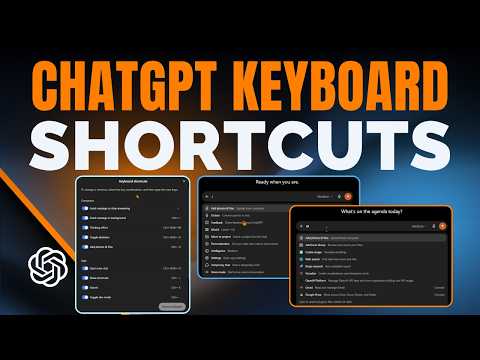 ChatGPT Keyboard ShortcutsIn the ChatGPT desktop app, Ctrl+/ (Cmd+/ on a Mac) shows every keyboard shortcut; Ctrl+N starts a new chat, Ctrl+Shift+N a temporary chat, and Ctrl+K opens the command menu. On chatgpt.com, Ctrl+K or Cmd+K opens Search. This page lists only the shortcuts OpenAI documents, as of Nov 6, 2026.
-
-
-
 Account SecuritySecure a ChatGPT account in Settings > Security: turn on multi-factor authentication or passkeys, review active sessions and security history, and for the strongest protection enroll in Advanced Account Security, which requires passkeys or security keys plus recovery keys.
-