
 All vikis
 007 First Light
 AI
 Aion 2
 Ananta
 ARC Raiders
 ArcheAge Chronicles
 Call of Duty: Modern Warfare 4
 Chrono Odyssey
 Civilization 3
 Civilization 4
 Claude
 Crimson Desert
 Deadlock
 Diablo 4
 Diablo 5
 Enshrouded
 Fable
 Final Fantasy Resonance
 Football Manager 27
 Forza Horizon 6
 God of War
 Grand Theft Auto 6
 Heroes of Might and Magic 3
Codex App
The Codex app is now the Codex view of the ChatGPT desktop app for macOS, Windows and Linux, where Codex runs parallel chats, worktrees, Computer Use, Appshots, Goal mode, Record and Replay and remote control from a phone. It replaced the standalone Codex app OpenAI launched on Feb 2, 2026.
The Codex app is the ChatGPT desktop app: since Jul 9, 2026 Codex has been "part of the ChatGPT desktop app on macOS and Windows" (changelog), so you download ChatGPT, sign in and choose Codex instead of ChatGPT, then start with New chat. It is free to install on every plan, Free included, and Codex work there draws on your plan's Codex usage (Codex Pricing and Limits). Before July it was a separate app, launched for macOS on Feb 2, 2026 and for Windows on Mar 4, 2026 (OpenAI). A Linux preview arrived on Aug 11, 2026 (changelog).
The app is where Codex can do the most: run several chats on one repository at once, use other apps on your computer, take an Appshot of whatever window you are looking at, chase a long goal, learn a workflow you demonstrate, and be steered from your phone. The Codex CLI and Codex IDE Extension share its configuration file, ~/.codex/config.toml (Models). The rest of the desktop app (Chat, Work, files, plugins) is on ChatGPT Desktop App.
Quick facts
| Where | The Codex view of the ChatGPT desktop app for macOS and Windows, and a Linux preview |
| Price | Free to install; usage follows your ChatGPT plan |
| Standalone Codex app | Feb 2, 2026 (macOS), Mar 4, 2026 (Windows) |
| Joined ChatGPT | Jul 9, 2026 |
| Linux preview | Aug 11, 2026, .deb and .rpm packages for x64 and ARM64 |
| History | Separate from ChatGPT history |
How do I get the Codex app?
- Download ChatGPT for macOS or Windows, or follow OpenAI's Linux installation guide.
- Open the app and sign in with your ChatGPT account (or select Sign in another way to use an API key).
- Choose where to work: a chat, a project, or a folder on your computer.
- Choose Codex and start with New chat. Describe the result you want.
Source: ChatGPT desktop app, OpenAI docs, read Nov 6, 2026.
On Windows the app runs natively in PowerShell with its own sandbox, so it does not need WSL or a virtual machine; it supports parallel chats, worktrees, scheduled tasks, Git, the built-in browser, file previews, plugins and skills (Windows sandbox).
Parallel chats and worktrees
The app keeps every chat in view, so you can run several pieces of work at once and switch between them. On a Git repository each chat can run in a worktree, a second checkout of the repository that shares its history, so parallel chats do not overwrite each other's files. Handoff moves a chat between your local checkout and a worktree, and Codex does the Git steps. Scheduled tasks run in their own background worktrees for the same reason (Worktrees). A frequent scheduled task can pile up worktrees over time, so archive runs you no longer need (Troubleshooting).
Computer Use
With Computer Use, Codex can see and operate other apps on a Mac or Windows PC: check a desktop app, use a browser, change settings, or reproduce a bug that only shows in a graphical interface. Turn it on in Settings > Computer use (install Any App if it asks), and Codex asks before it uses each app; apps you approve for later appear under Always-allowed apps. On a Mac, grant Screen Recording and Accessibility permissions when asked; on Windows, keep the target app visible on the active desktop. It is available in supported regions only (Computer Use). Computer Use and remote control came to Windows on May 29, 2026, at first outside the EEA, the UK and Switzerland (release notes).
Appshots
An Appshot sends the window at the front of your screen to a chat: an image of the window plus any text the app exposes, including text scrolled out of view. Press both Command keys on a Mac or both Alt keys on Windows, or set your own hotkey. By default an Appshot opens a new chat, unless you used a chat in the last 60 seconds, in which case it joins that one; Appshot destination in settings changes this. Appshots are stored locally with the session, like any attachment (Appshots). They arrived on May 21, 2026.
Goal mode
Type /goal and a description of the finished result, and Codex works toward it over many steps. The goal text is both the first prompt and the test of whether the work is done, so good goals name the outcome, the constraints and how to verify it ("make the full test suite pass"). A progress row above the composer lets you pause, resume, edit or clear the goal. If the outcome is still fuzzy, start with /plan and turn the result into a goal (Long-running work). Goal mode reached general availability on May 21, 2026 and also works in the CLI and the IDE extension.
Record and Replay
On a Mac, Record and Replay turns a workflow you demonstrate into a reusable skill: filing an expense, booking a parking space, downloading a recurring report. In Codex, open Plugins, then the + menu, select Record a skill, approve the recording, do the task, and stop. Computer Use must be on (Record and Replay). It came to Codex on Jun 18, 2026.
Remote control from a phone
Codex Remote, generally available since Jun 25, 2026, lets the ChatGPT app on iOS or Android drive Codex on a Mac or Windows computer that is awake, online and signed in to the same account. From the phone you can start chats in the computer's projects, answer questions, approve commands, and review diffs, test results and screenshots, and you are notified when a task finishes or needs you. Setup starts on the computer (Settings > Connections > Control this Mac or PC, then scan the QR code), not from the CLI or IDE. The app can also connect to projects on an SSH host (Remote connections, Codex on mobile).
Composer predictions
After Codex answers, composer predictions suggest your next message in the box; press Tab to accept it as an editable draft, which is never sent for you. It is a beta for users 18 and older on personal ChatGPT Pro plans, with GPT-6 Astra, GPT-6.1 Sol and GPT-6.1 Terra, and is on by default for them (Settings > General > Composer > Show predictions). Generating predictions does not count toward Codex limits (Composer predictions). It arrived on Oct 9, 2026.
Code Review and Security in the app
The app includes a Code Review plugin with a pull request's summary, changed files and checks, and an inbox of reviews assigned to you or your team (Code review); see Codex Code Review. The Codex Security plugin adds a Security workbench for scanning a local repository (Codex Security); see Codex Security.
Frequently asked questions
Is there still a separate Codex app? No. Since Jul 9, 2026 Codex is a view inside the ChatGPT desktop app on macOS and Windows; you choose Codex in the app and start a new chat. The standalone Codex app OpenAI launched on Feb 2, 2026 came before it.
Is the Codex app free? The ChatGPT desktop app is free to install on every plan, including Free. Free and Go get GPT-6 Luna in Codex, subject to rollout; Plus and higher plans get more usage and stronger models.
Does the Codex app work on Windows and Linux? Yes. ChatGPT's desktop app runs natively on Windows with its own sandbox, and a Linux preview has been available since Aug 11, 2026 as .deb and .rpm packages.
What are Appshots in Codex? An Appshot sends the front window of another app, as an image plus its text, into a Codex chat. Press both Command keys on a Mac or both Alt keys on Windows.
Can I control Codex from my phone? Yes. With Codex Remote, the ChatGPT app on iOS or Android can start, steer and approve Codex work on a connected Mac or Windows computer, which must stay awake and online.
Sources
- ChatGPT desktop app, OpenAI docs, read Nov 6, 2026
- Changelog, OpenAI docs, read Nov 6, 2026
- Introducing the Codex app, OpenAI, Feb 2, 2026
- ChatGPT Work and Codex, OpenAI Help Center, read Nov 6, 2026
- ChatGPT release notes, OpenAI Help Center, read Nov 6, 2026
- Authentication, OpenAI docs, read Nov 6, 2026
- Windows sandbox, OpenAI docs, read Nov 6, 2026
- Worktrees, OpenAI docs, read Nov 6, 2026
- Troubleshooting, OpenAI docs, read Nov 6, 2026
- Computer Use, OpenAI docs, read Nov 6, 2026
- Appshots, OpenAI docs, read Nov 6, 2026
- Long-running work, OpenAI docs, read Nov 6, 2026
- Record and Replay, OpenAI docs, read Nov 6, 2026
- Remote connections, OpenAI docs, read Nov 6, 2026
- Codex on mobile, OpenAI docs, read Nov 6, 2026
- Composer predictions, OpenAI docs, read Nov 6, 2026
- Code review, OpenAI docs, read Nov 6, 2026
- Codex Security, OpenAI docs, read Nov 6, 2026
- Models, OpenAI docs, read Nov 6, 2026
- Codex just got better for developers, OpenAI, Jul 14, 2026 (video)
- Introducing the Codex app, OpenAI, Feb 2, 2026 (video)
- The Codex app is now on Windows, OpenAI, Mar 5, 2026 (video)
- Windows Computer Use and mobile access for Codex, OpenAI, May 29, 2026 (video)
- Run long tasks in Codex using goals, OpenAI, May 21, 2026 (video)
- Record & Replay in Codex, OpenAI, Jun 18, 2026 (video)
- Code review is no longer the bottleneck, OpenAI, Oct 12, 2026 (video)
Moments
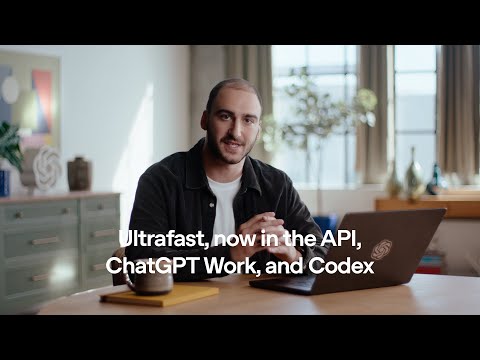
Codex just got better for developers
OpenAI
Introducing the Codex app
OpenAI
The Codex app is now on Windows
OpenAI
Windows Computer Use and mobile access for Codex
OpenAI
Run long tasks in Codex using goals
OpenAI
Record & Replay in Codex
OpenAI
Code review is no longer the bottleneck
OpenAI
Photos
Related
-
 AGENTS.mdAGENTS.md is a plain Markdown file of instructions for AI coding agents, a "README for agents", that Codex reads before doing any work. Codex loads a global ~/.codex/AGENTS.md and then every AGENTS.md from the repository root down to the working folder, closest last, up to 32 KiB; /init writes a first one. The open format is now stewarded by the Agentic AI Foundation.
-
 CodexCodex is OpenAI's coding agent: it reads a codebase, edits files, runs commands and tests, reviews pull requests and works in the cloud. As of Nov 6, 2026 it lives inside the ChatGPT desktop app, in the Codex CLI, in IDE extensions, in Codex Cloud and on mobile, and every ChatGPT plan includes some of it, Free and Go too.
-
-
 Codex ModelsAs of Nov 6, 2026 Codex recommends four models: GPT-6 Astra (most capable), GPT-6.1 Sol (the default, near Astra at lower cost), GPT-6.1 Terra (fast, for writing and computer use) and GPT-6 Luna (most efficient). They replaced a line of coding-tuned models that ran from codex-1 in 2025 through GPT-5-Codex, GPT-5.1-Codex-Max and GPT-5.3-Codex.
- Codex SDKThe Codex SDK lets programs run OpenAI's Codex agent: npm install @openai/codex-sdk for TypeScript (Node.js 18 or later) or pip install openai-codex for Python (3.10 or later). For CI there is also codex exec, the non-interactive CLI mode, and the GitHub Action openai/codex-action@v1; the App Server is the protocol for building full Codex clients.
- Codex SecurityCodex Security is OpenAI's application security agent: it builds a threat model of a repository, looks for vulnerabilities, tries to confirm them in a sandbox and proposes patches. It began as Aardvark (announced Oct 30, 2025), became Codex Security in research preview on Mar 6, 2026, and now runs as a desktop plugin, a cloud plugin, a CLI and SDK, and pull request Security Review, alongside Daybreak for approved defenders.
-
 ChatGPT Atlas vs Other AI BrowsersChatGPT Atlas, OpenAI's AI browser, stopped working on Aug 9, 2026; ChatGPT's browsing now lives in the desktop app's built-in browser and the ChatGPT browser extension, and the AI browsers still sold are Perplexity's Comet (free), Gemini in Chrome, Edge with Copilot, Dia and Claude in Chrome.
-
See also
-
 Codex Pricing and LimitsCodex comes with every ChatGPT plan as of Nov 6, 2026: Free ($0) and Go ($8) get GPT-6 Luna in the desktop app, Plus ($20) gets about 15 to 160 GPT-6.1 Sol messages per five hours plus Codex Cloud, and Pro ($100, $200 or $500) has no five-hour limit. Credits extend any plan, and an API key bills by the token instead.
-
-
-
-
-